
These configuration steps are intended for district IT administrators with access to Schoology's App Center, Organization Apps, and School Management settings.
Integration Capabilities:
The PLT4M and Schoology integration supports:
- Class Pairing — Connect Schoology courses/classes with PLT4M groups and automatically enroll students in the corresponding PLT4M group.
- Deep Linking — Add links to PLT4M programs and content directly within Schoology courses.
Step 1: Install the PLT4M App in Schoology
- In Schoology, navigate to the App Center.
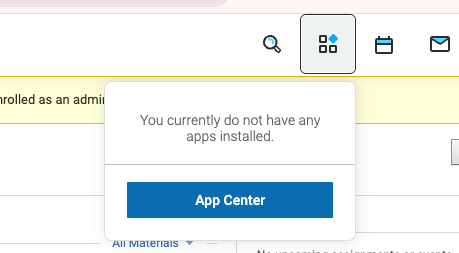
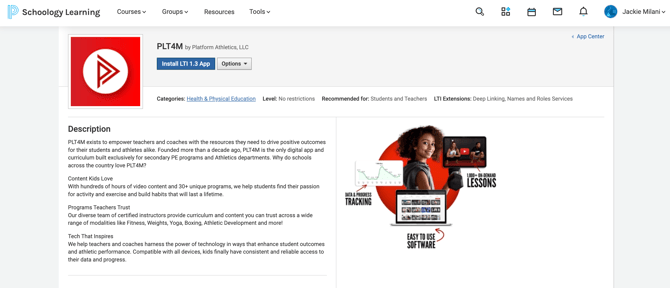
- Select the Health & Physical Education Category and locate the PLT4M App.

- Select install and agree to the terms to begin the installation.
- After the installation is complete, select Add to Organization.
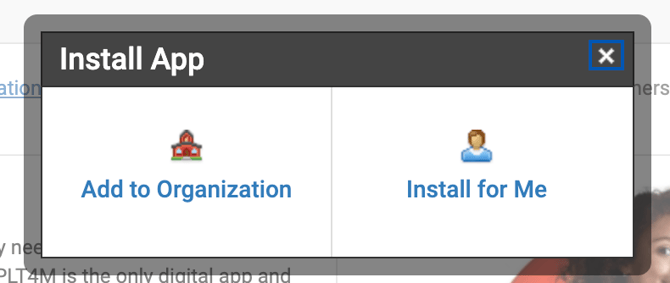
The PLT4M App is now installed for your Schoology ogranization.
Step 2: Locate Your Deployment ID and Building ID's
Once the PLT4M app has been added to your organization, you'll need to provide PLT4M with your Deployment ID and the School/Building IDs associated with the schools that will use the integration.
Locate Your Deployment ID
- From Organization Apps, locate the PLT4M app and select Configure

- Locate your Deployment ID in the PLT4M configuration settings.
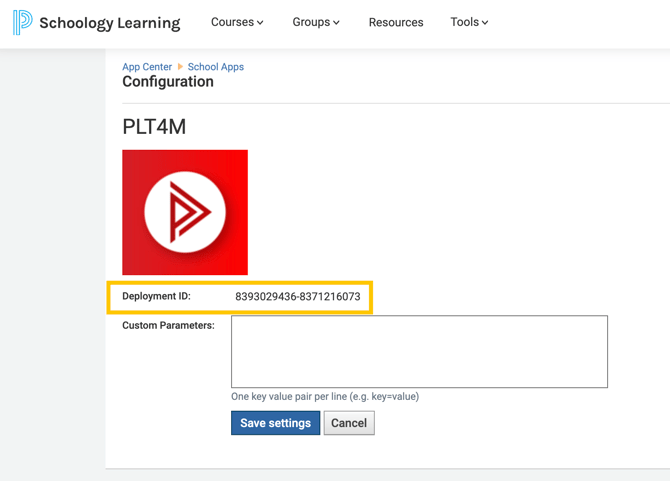
- Copy the Deployment ID. You will provide this ID to the PLT4M team as part of the configuration process.
Locate Your School/Building IDs
- In Schoology, navigate to Tools and select School Management.
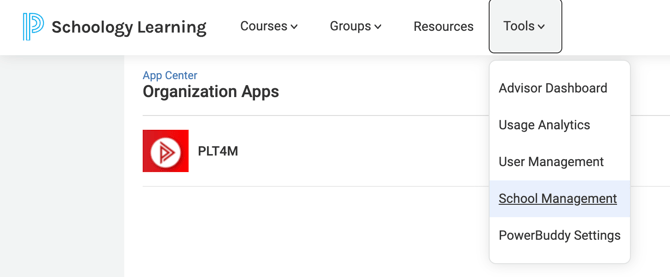
- Select Schools from the left-hand navigation menu.
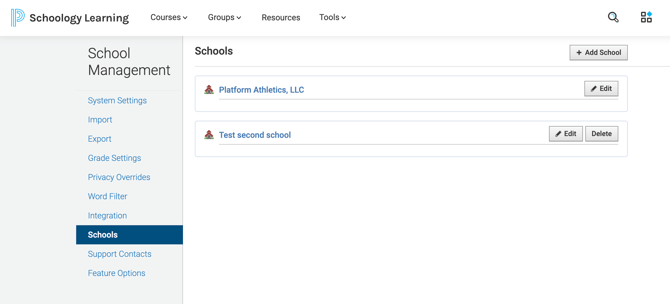
- Locate the schools/buildings that will be using PLT4M and record the corresponding School/Building IDs either by:
- Right clicking the school name and extracting the number at the end of the URL, OR
- Save this page as an HTML, and extract the building ID's from there
- Send the Deployment ID and applicable School/Building IDs to your PLT4M representative or support@plt4m.com.
Note: PLT4M will use these IDs to complete the integration configuration for your district.
Next Steps
Once you have provided the Deployment ID and School/Building IDs to PLT4M, our team will complete the remaining configuration and confirm when the integration is ready to use.
If you have questions or need assistance during the setup process, please contact the PLT4M Support Team.