
Rack View is a great tool that lets up to five students share one device to access their personalized workouts.
As a staff member, you can set up Rack View on each shared device so students can quickly create their workout groups and get to work. Here's how to set up your shared devices:
Step 1: Go to the PLT4M Login Page either by opening the App, via this direct link https://app.plt4m.com/sign_in or by going to PLT4M.com and hitting Login/Register in the top right corner.
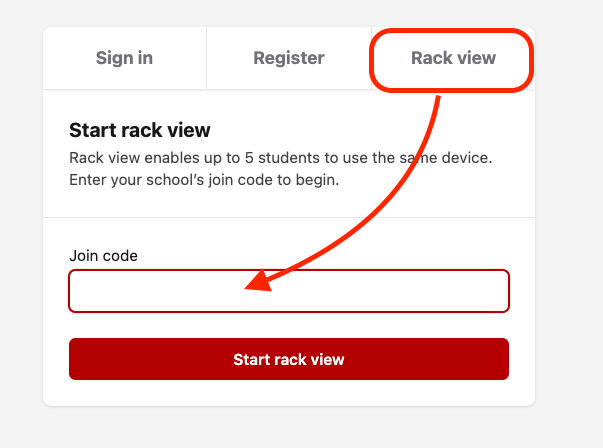
Step 2: Choose the "Rack View" tab on the Sign-In screen. Enter your School Join code - this is the same code students use to Register for PLT4M.
Step 3: That's it! Leave the Student Selection screen on the device. Students will be able to search and add their group members to their Rack View, select their program, and begin logging the workout.
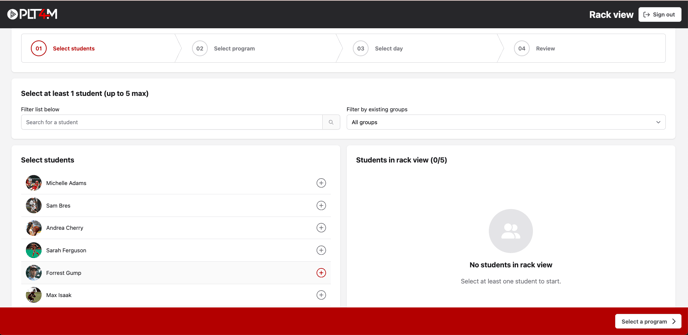
NOTE: Students in a Rack View must use the same workout or lesson. For example, you will want to avoid In-Season and Off-Season athletes grouping up, as they will have to choose either their In-season OR Off-Season workout.
If this presents a major hurdle to how your classes operate, email support@plt4m.com and we can discuss alternative options for allowing a device to be shared for different workouts.