⚠️ Important:
Deleting a student permanently removes them and all associated data from PLT4M.
This is commonly done for students who have graduated or no longer need access. Once a student is deleted, their license becomes available for another student to use.
Students may be shared across multiple teachers and coaches in PLT4M. Before deleting a student, confirm that no other staff member is working with them. For example, a student may no longer be in your class but still need access for athletic training.
To delete a student:
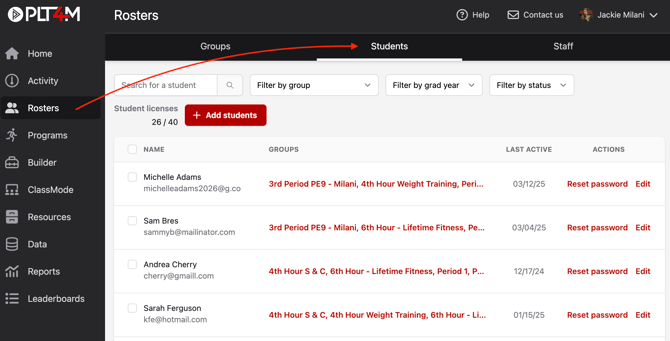
- Navigate to the Rosters tab and click into the Students section
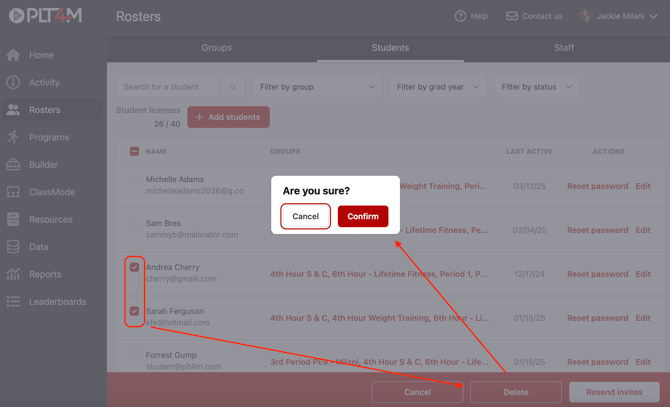
- Select the checkbox next to the students name(s)
- Click Delete, then click Confirm