To Invite a Staff Member:
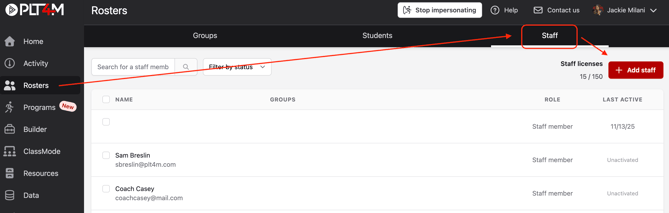
- Navigate to the Rosters tab
- Click into the Staff tab in the top navigation bar
- Select +Add Staff
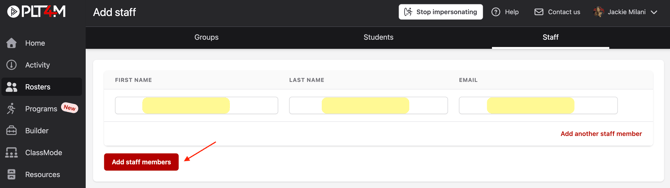
- Enter staff members first name, last name, and email
- Click Add staff members to submit
Upon submitting, staff members will receive an email invitation prompting them to activate their PLT4M account.
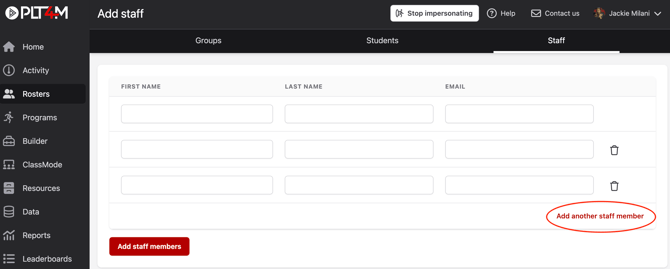
Note: You may add multiple staff members at once by clicking add another staff member
Pro Tip: Use the status column to see who has activated and who has not. You may resend invites at any time from this page. If using school emails, we recommend checking with your IT department to ensure plt4m.com is listed as a "Safe Site."
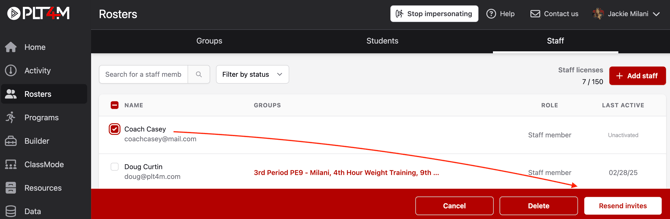
To Resend an Invite:
- Navigate to the Rosters tab
- Click into the Staff tab in the top navigation bar
- Select the checkbox next to the staff member(s) you'd like to resend invites to
- Select Resend Invites