
From your Staff account, go to the Roster tab.
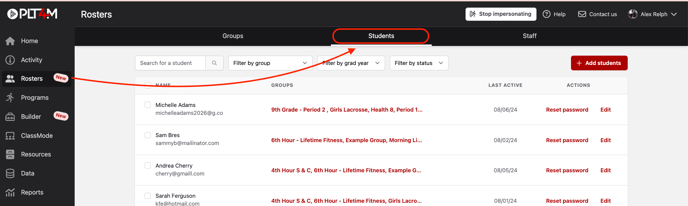
You will be presented with three options:
- Join Code
- Import List
- Enter Manually
For the best experience, we HIGHLY recommended using the join code sign up option. If you import a list or enter students manually, students are required to activate their account via email verification. Many schools have a firewall that blocks students from getting outside emails, so if you choose this option, make sure you check with your IT team first to ensure emails can get through.
Using The Join Code
Make note of your join code and share it with students, along with the steps below:
Mobile App:
- Download the PLT4M app from the app store
- Launch the App and choose the "Register" Tab
Web
- Go to PLT4M.com
- Choose the Login/Register button in the top right corner
Registration Process
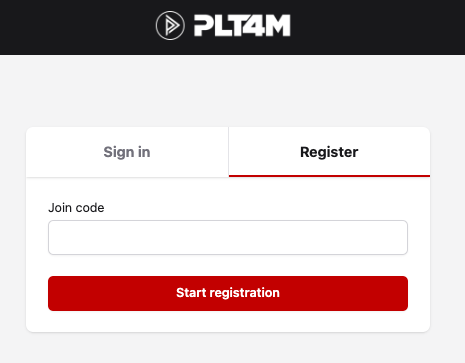
From there, students will be prompted to enter your school's Join Code
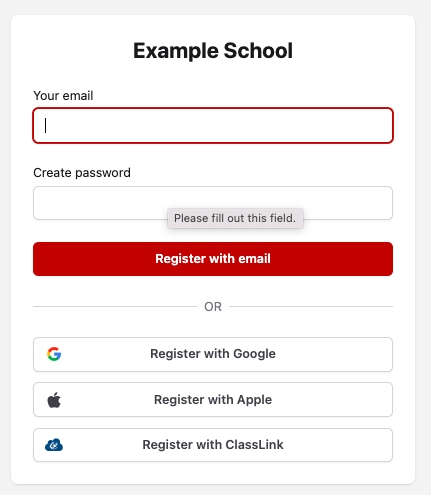
Next, they can choose to enter their email and password, or use one of the Single-Sign-On features provided (Google, Apple, Classlink).
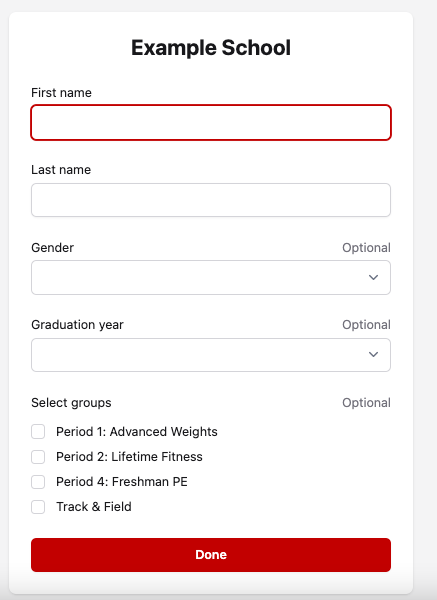
Next, they will enter their name, grad year, and gender and then choose any applicable groups that they belong to.
....And that's it!