
Rack View can help minimize devices in your weight room/classroom, and can be used if a student does not have or forgets their device.
Step 1: Open Rack View
Rack View can be accessed two different ways:
--> Option 1: Access Rack View on the login page:- Go to the PLT4M Login Page via this direct link https://app.plt4m.com/sign_in or by going to PLT4M.com and hitting Login/Register in the top right corner
- Use the Rack View sign-in tab and enter your school's join code to access Rack View
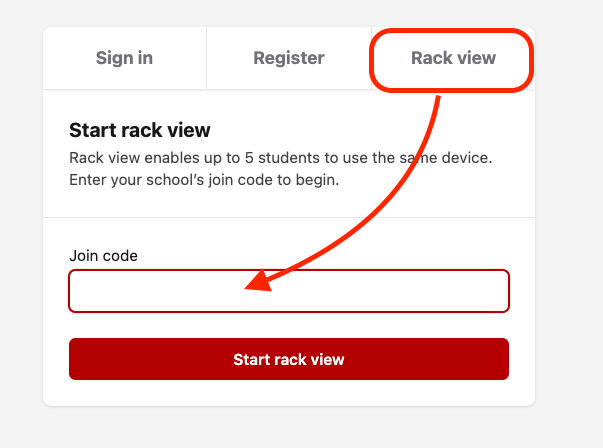
--> Option 2: Access Rack View through a students account
- Within a student account, click into the Rack View tab
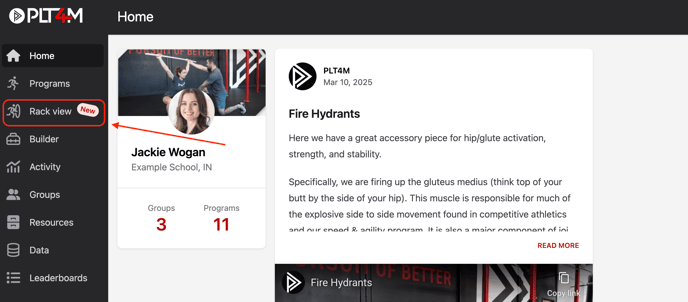
On the app and mobile devices, the Rack View tab will show along the bottom nav bar

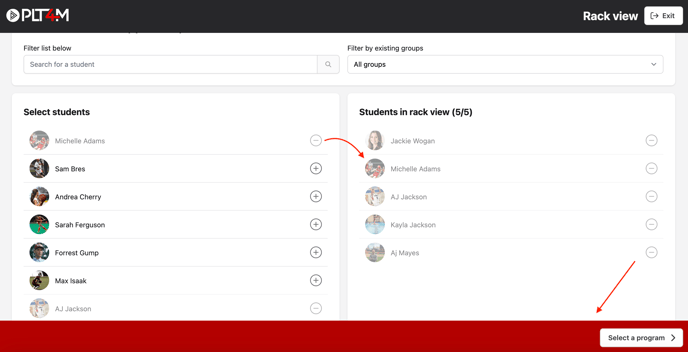
Step 2: Add students to your Rack View
- Each rack view may include up to 5 students per device. Use the search bar or group filter to search and add students. Click the (+) to add a student to the view.
- Choose Select a program
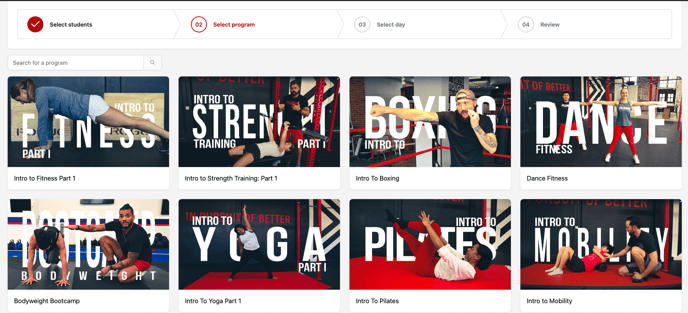
Step 3: Choose a Program
- Students will be able to search and choose the program they wish to perform.
Students will see ANY program that ANY student in the selected group has access to
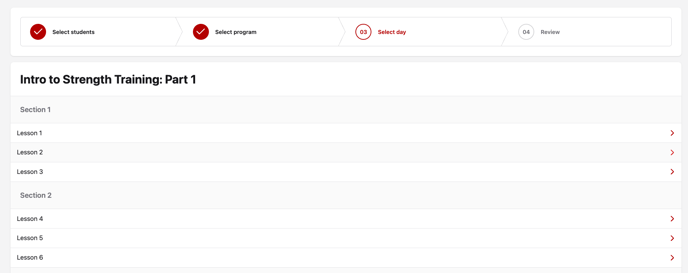
Step 4: Choose a Workout
- Students will then choose the Workout or Lesson from the selected Program
Step 5: Start Session
- Select Start Session in the top right corner to begin the workout. Once clicked, students will be marked present for attendance, and the activity timer will begin, recording the length of the session for all students in the rack view
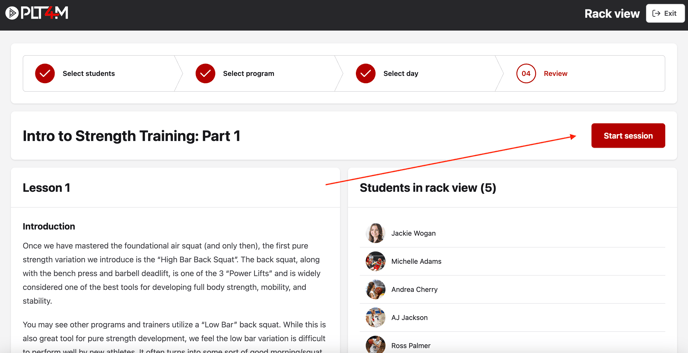
Please note: In order to use Rack View, all students in the view must be logging the same workout. Students will still be able to view and record personalized weight prescriptions, and submit test results, when applicable.