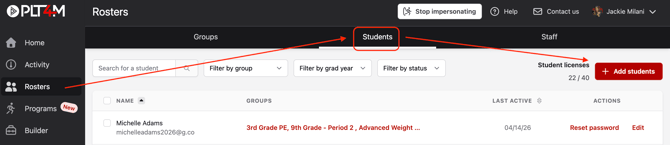
- Navigate to your Rosters tab and click into the Student section
- Click + Add Students
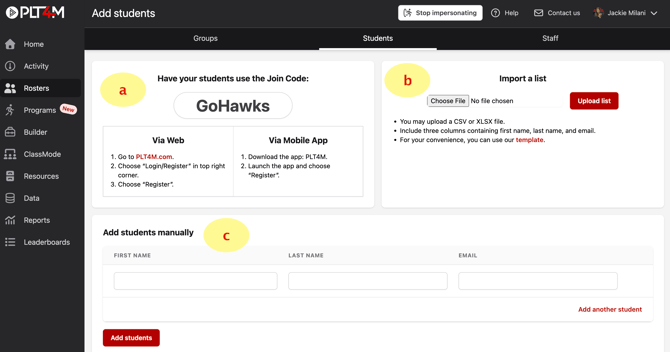
- Decide how you want to register students:
- Join Code (Recommended)
- Import List
- Manual Invite
To Register Students with Join Code:
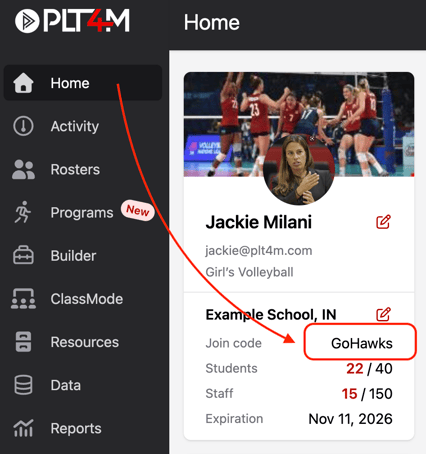
- Locate your join code on the Add Students page (see steps above) or on your Home page. Account administrators can also customize the join code in their settings.
- Share your join code with students using the Student Registration Flyer
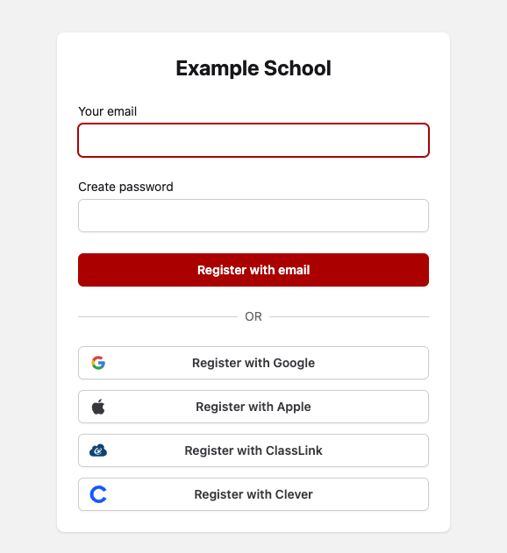
- Once students enter the Join Code, they can:
- Enter their email and create a password, or
- Select a SSO (single sign-on) option (recommended)
💡 Pro Tip:
If possible, we recommend using an SSO option so students don’t need to create or remember a separate PLT4M password.
Once registered, students will receive the Student Welcome Video. Encourage them to watch it!
To Register Students via Import or Manual Invite
Both of these options require student email verification. Be sure to reference the access & device requirements to make sure students can receive emails from PLT4M.
- Navigate to your Rosters tab and click into the Student section
- Click + Add Students
- Choose how you’d like to invite students:
- Enter names and email addresses manually, or
- Click Choose File to upload a list of students
- Click Submit
Once submitted, students will receive an email invitation with an activation link. They must click the link to complete their PLT4M registration.
To Register students with Schoology or Canvas
PLT4M's LTI integrations support:
- Class Pairing — Connect Canvas courses/classes with PLT4M groups and automatically enroll students in the corresponding PLT4M group.
- Deep Linking — Add links to PLT4M programs and content directly within Canvas courses.
To configure an LTI integration, view the instructions below:
To Register students with ClassLink
If your school uses ClassLink, you can add PLT4M as a rostering application. In order to sync rosters into PLT4M via ClassLink, be sure to send your ClassLink Source ID & ClassLink tenant ID to us at support@plt4m.com so we can establish a connection.
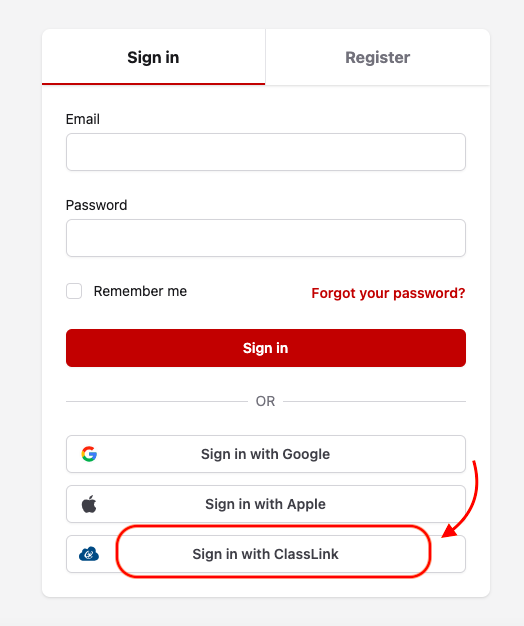
- Once rostered via ClassLink, students may activate their accounts by navigating to the PLT4M login page: https://app.plt4m.com/sign_in
- Students will choose "Sign In with ClassLink"
- Students will be redirected to ClassLinks Login page. Upon successfully logging into ClassLink, they will automatically be logged into PLT4M.