
First, navigate to the programs page and find the desired program.
Copy a Week
In the Week menu on the left hand side, click the check box next to the desired week you wish to copy.
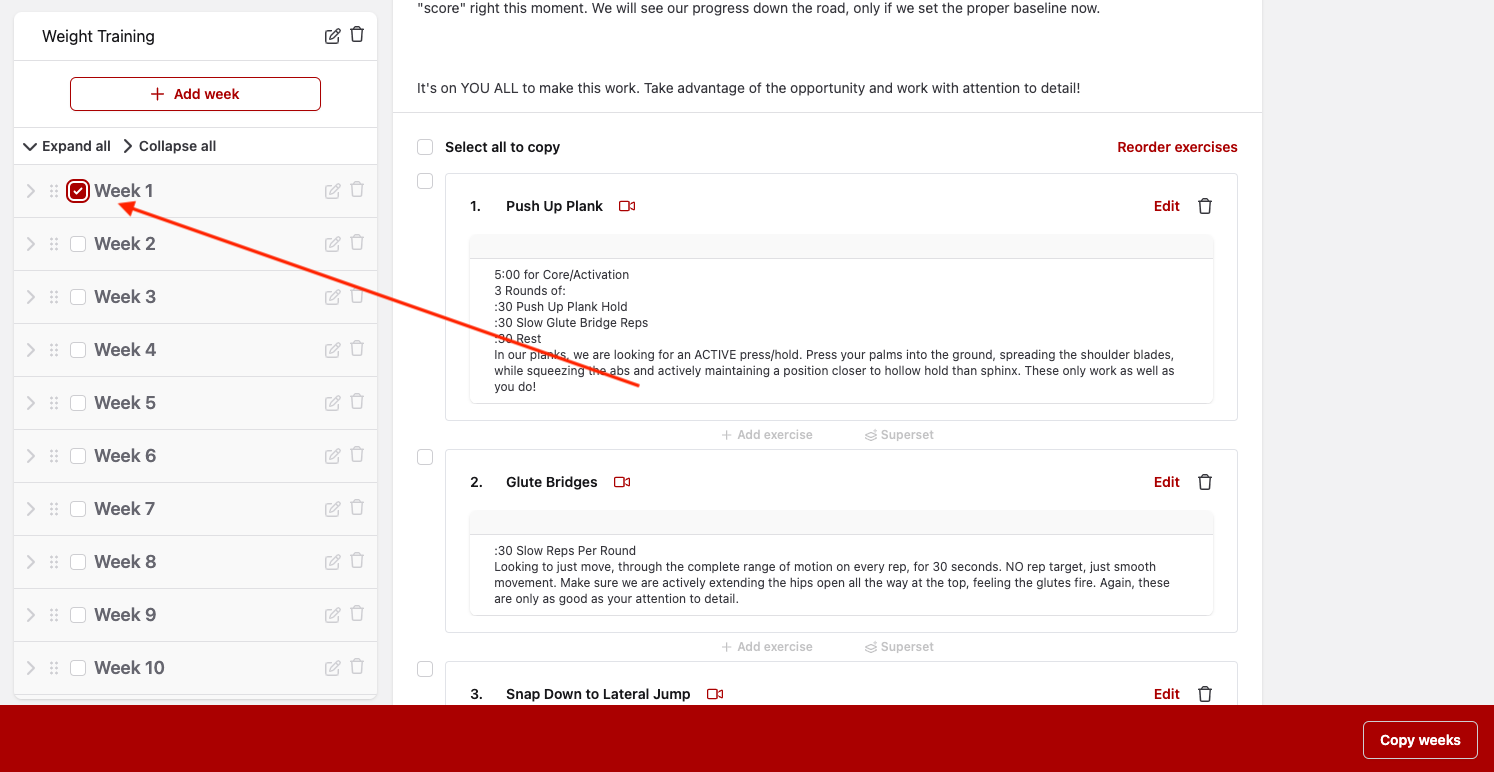
In the bottom right corner, click the "Copy Weeks" button that pops up.
To copy within the same program, choose "Paste Weeks" and it will appear at the bottom of the week. You can then drag and drop the week where needed.
If you want to copy the week to a different program, navigate back to the Program page, navigate to the desired program and hit "Paste Weeks" once inside.
Copy a Day
Once inside the program, navigate to the desired day.
Choose the "Select all to copy" button above the first exercise
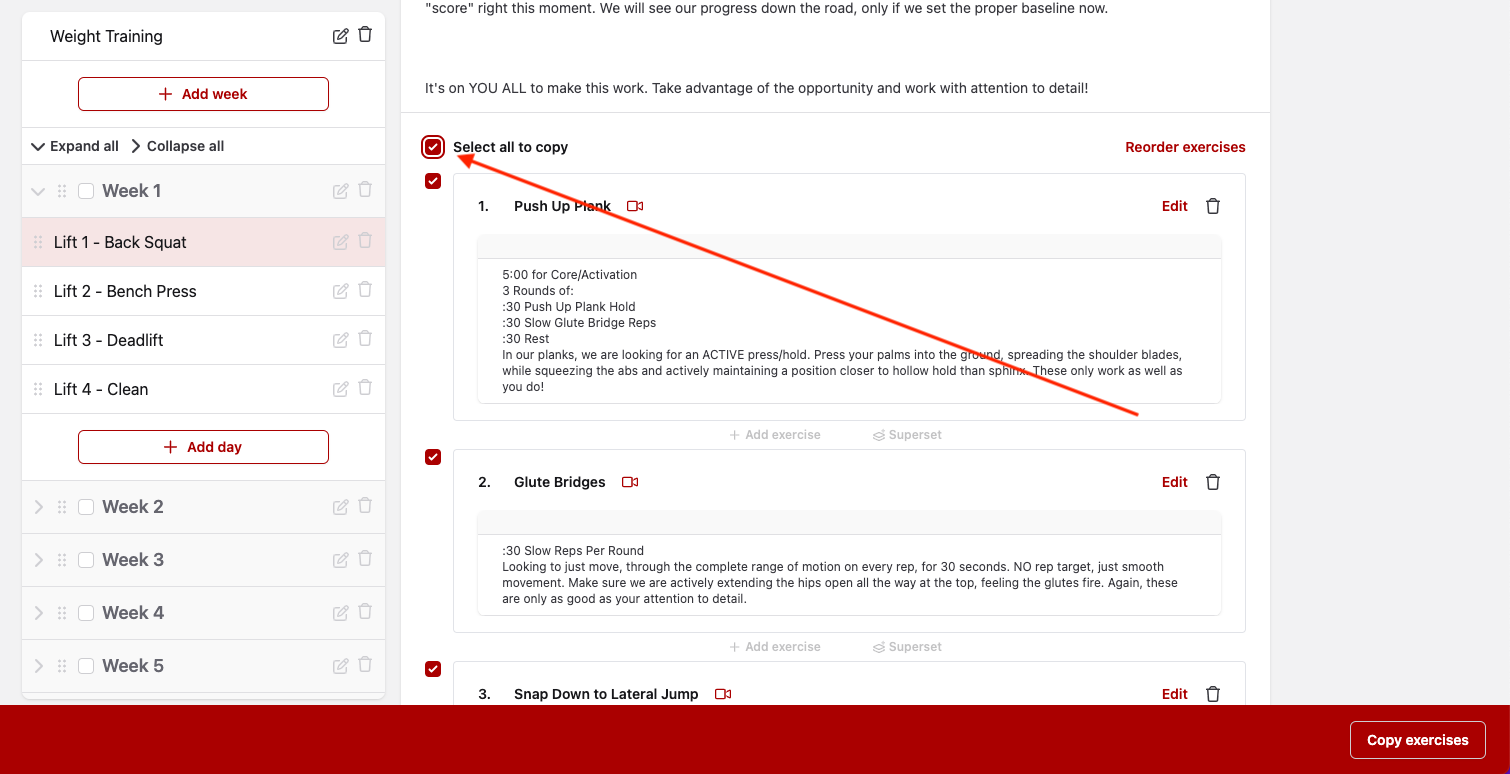
In the bottom right corner, click the "Copy exercises" button that pops up.
To copy within the same program, navigate to the desired day, and hit "Paste Exercises"
If you want to copy the week to a different program, navigate back to the Program page, navigate to the desired program and hit "Paste Exercises" once inside.
Copy Exercises
Once inside the program, navigate to the desired day.
Click the check boxes next to the desired exercises.
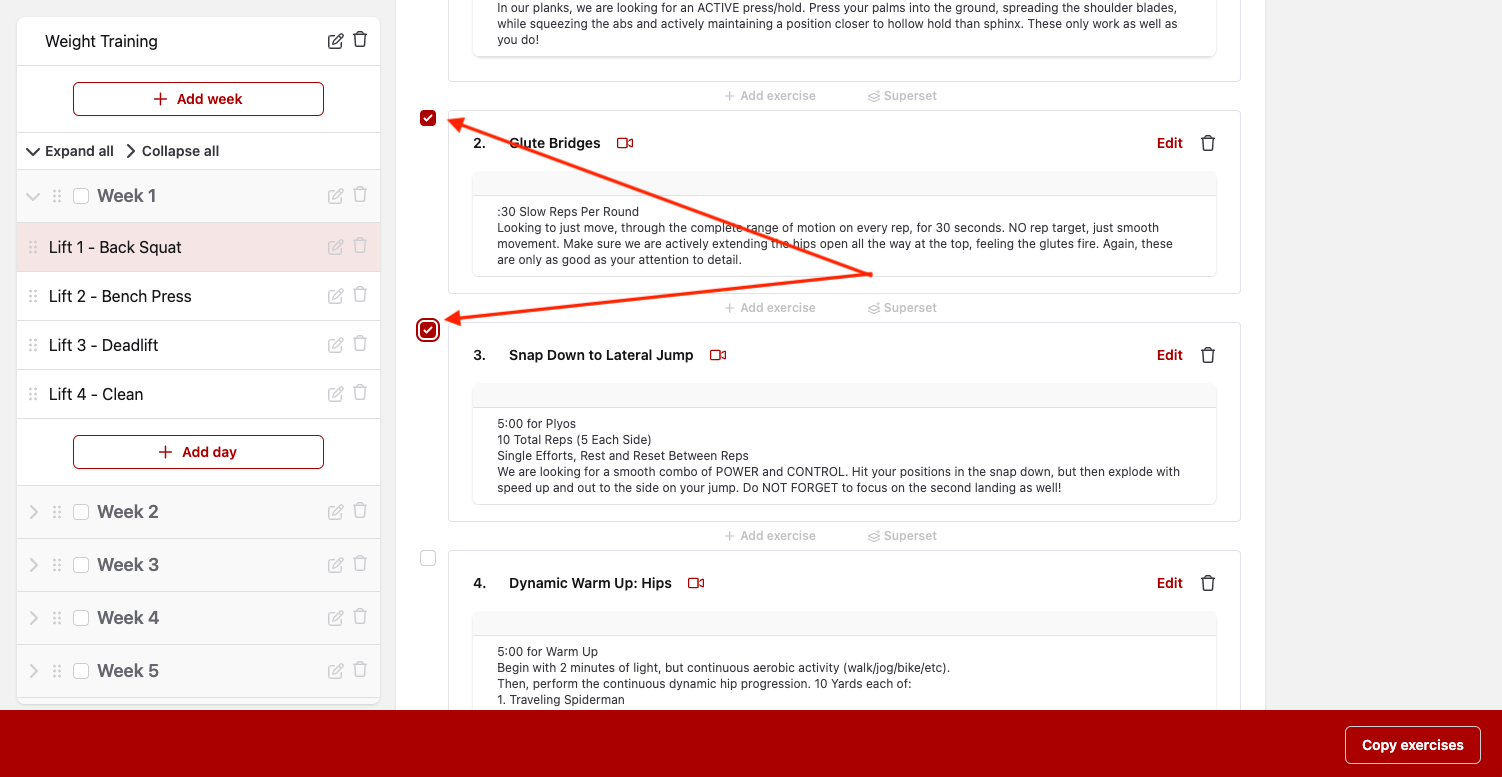
In the bottom right corner, click the "Copy exercises" button that pops up.
To copy within the same program, navigate to the desired day, and hit "Paste Exercises"
If you want to copy the week to a different program, navigate back to the Program page, navigate to the desired program and hit "Paste Exercises" once inside.