---
title: Create a Leaderboard
description: See how students rank in various metrics through leaderboards!
---
[Skip to content](https://knowledge.plt4m.com/knowledge/how-to-create-a-leaderboard#main-content)
English
Show submenu for translations
[contact us](https://knowledge.plt4m.com/knowledge/kb-tickets/new?hsLang=en)
[](https://knowledge.plt4m.com/knowledge?hsLang=en)
- [Home](https://knowledge.plt4m.com/knowledge)
- [back to PLT4M](https://app.plt4m.com/)
Open main navigation
Close main navigation
- [Home](https://knowledge.plt4m.com/knowledge)
- [back to PLT4M](https://app.plt4m.com/)
- English
Show submenu for translations
- [contact us](https://knowledge.plt4m.com/knowledge/kb-tickets/new)
- [PLT4M Classroom](https://classroom.plt4m.com/pages/customer-classroom)
[PLT4M Classroom](https://classroom.plt4m.com/pages/customer-classroom)
Welcome to the PLT4M Help Center
- There are no suggestions because the search field is empty.
1. [Help Center](https://knowledge.plt4m.com/knowledge?hsLang=en)
2. [Track and Assess Students](https://knowledge.plt4m.com/knowledge/track-and-assess-students?hsLang=en)
May 6, 2026
# Create a Leaderboard
## See how students rank in various metrics through leaderboards!
### To Create a Leaderboard:
1. Navigate to your **Leaderboards** tab
2. Click **Create Leaderboard**
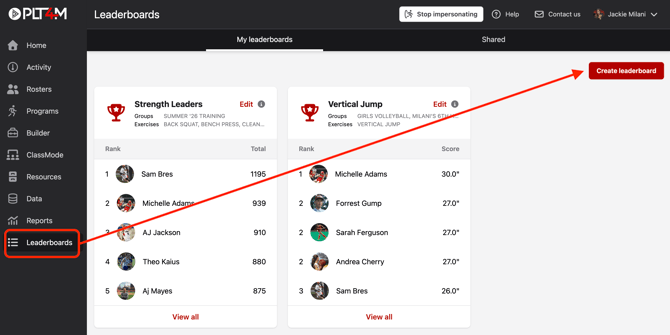
3. Build your leaderboard
1. Enter a name
2. Choose leaderboard type
3. Select your group(s)
4. Choose your metric(s); these will populate based on leaderboard type
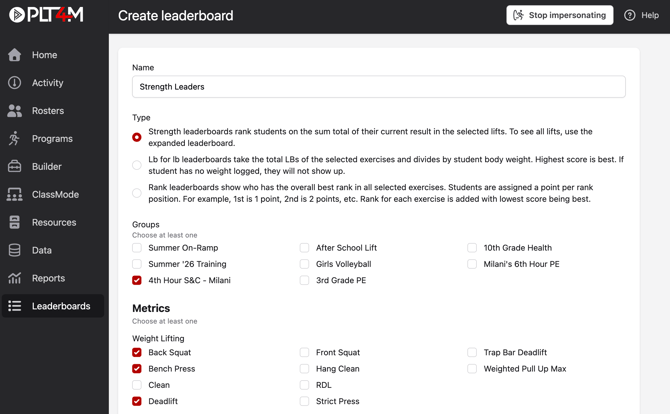
4. Click **Save leaderboard**
💡Leaderboard Tips:
- Staff can use the **gender** and **grad year** filters. *Note: these filters are not visible to students.*
- Create groups specifically for leaderboards if needed. You can make these groups private so students do not see them.
- Students can access any leaderboard associated with the groups they belong to.
### Not sure which type of leaderboard to choose?
There are 3 types of leaderboards:
**Strength: **This leaderboard allows you to select one or more weightlifting exercises and will display the leaders with the highest totals.
**LB for LB: **This leaderboard allows you to select one or more weightlifting exercises and will display the total pounds divided by the athlete's body weight. If they have never entered their body weight in PLT4M, they will not appear on the leaderboard.
**Rank:** This leaderboard allows you to choose exercises outside of the weightlifting category. If one exercise is chosen, it will show the rankings in terms of who is best. If multiple exercises are chosen, the system will assign one point for 1st, two points for 2nd, and so on. The leaders are shown by who has the lowest overall point total.
### Watch a video tutorial:
- [Getting Started](https://knowledge.plt4m.com/knowledge/getting-started?hsLang=en#main-content)
- [Manage Your Account](https://knowledge.plt4m.com/knowledge/getting-started?hsLang=en#manage-your-account)
- [For Administrators](https://knowledge.plt4m.com/knowledge/getting-started?hsLang=en#for-administrators)
- [Programs & Customization](https://knowledge.plt4m.com/knowledge/programs-customization?hsLang=en)
- [For Students](https://knowledge.plt4m.com/knowledge/for-students?hsLang=en)
- [Track and Assess Students](https://knowledge.plt4m.com/knowledge/track-and-assess-students?hsLang=en)
- [Resources for Teachers](https://knowledge.plt4m.com/knowledge/resources-for-teachers?hsLang=en)
- [Updates & Announcements](https://knowledge.plt4m.com/knowledge/updates-announcements?hsLang=en#main-content)
- [Product Updates](https://knowledge.plt4m.com/knowledge/updates-announcements?hsLang=en#product-updates)
- [back to PLT4M](https://plt4m.com/)
- [About](https://plt4m.com/about-us/)
- [Privacy](https://plt4m.com/privacy-policy/)
- [contact us](https://knowledge.plt4m.com/knowledge/kb-tickets/new)
[](https://knowledge.plt4m.com/knowledge?hsLang=en)
PLT4M Help Center
Copyright © 2026, PLT4M
```json
{
"@context" : "https://schema.org",
"@type" : "VideoObject",
"contentUrl" : "https://21441607.fs1.hubspotusercontent-na1.net/hubfs/21441607/New%20Site%20Highlight_%20Leaderboards.mp4",
"dateModified" : "2023-05-16T14:56:09.451Z",
"duration" : "PT4M39S",
"height" : 900,
"name" : "New Site Highlight_ Leaderboards",
"thumbnailUrl" : "https://21441607.fs1.hubspotusercontent-na1.net/hubfs/21441607/New%20Site%20Highlight_%20Leaderboards.mp4/medium.jpg",
"uploadDate" : "2023-05-16T14:56:01.782Z",
"width" : 1440
}
```