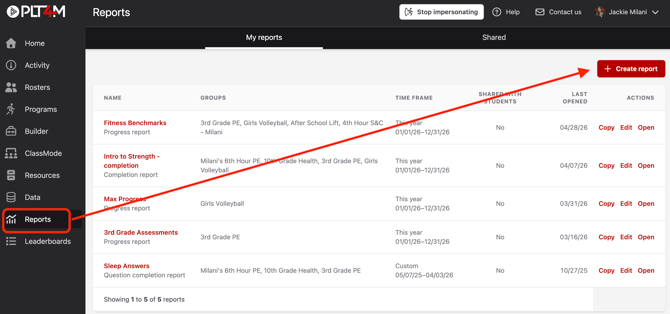
To create a progress report:
- Navigate to the Reports tab
- Click + Create Report
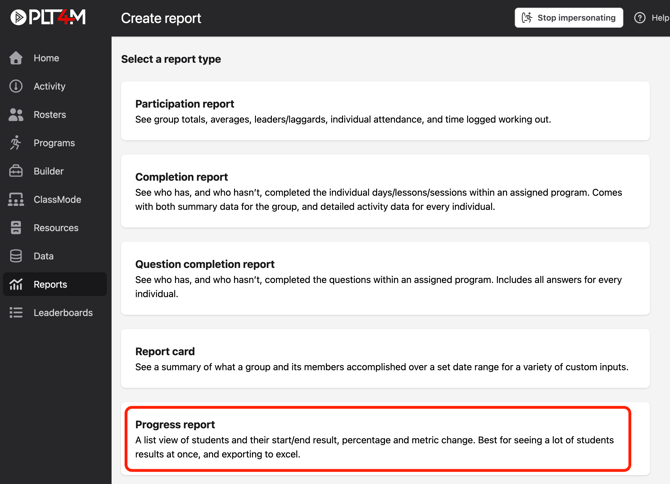
- Choose Progress report as your report type
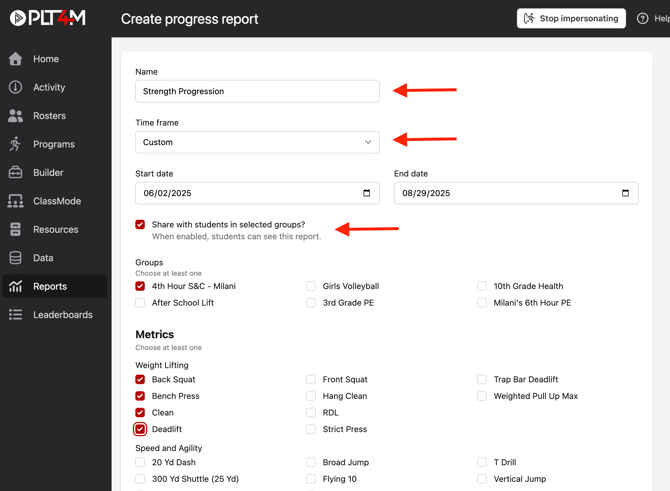
- Build your report:
- Enter a name
- Select a time frame
- Choose desired groups
- Choose desired metrics
- Optional: Select the “Share with students in selected groups” checkbox to send this report to student accounts. Students will only see their own data.
- Click Save report
Your report will include a tab for each test result—click into a test to view results
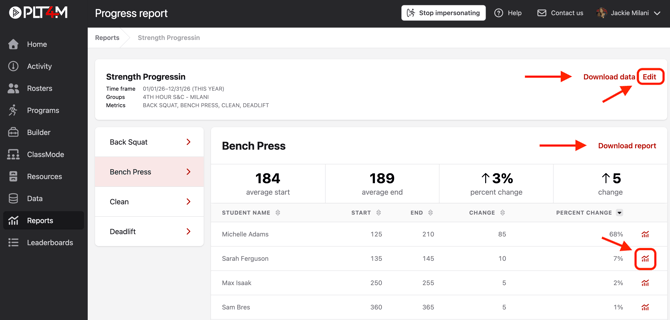
- Click Download data for an excel file with all logged test results that the report is derived from (which may include multiple results per student)
- Click Download report for an excel file displaying progress (an excel version of the displayed report)
- Click the column headers to sort the data
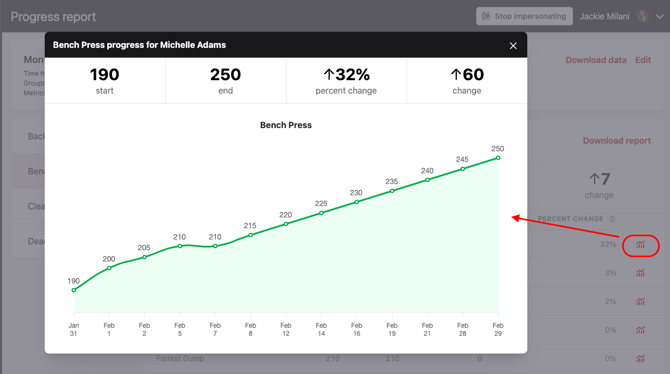
- Click the progress graph icon to view an individual student progress graph