
To create a Report Card:
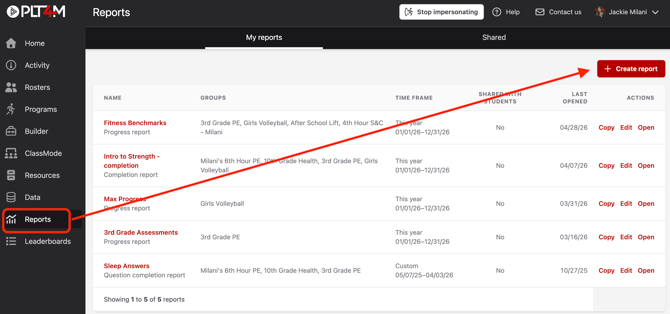
- Navigate to your Reports tab
- Click + Create Report
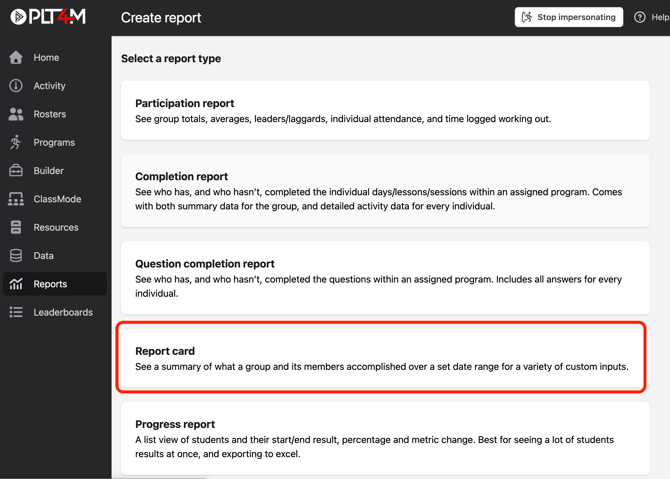
- Choose Report Card as your report type
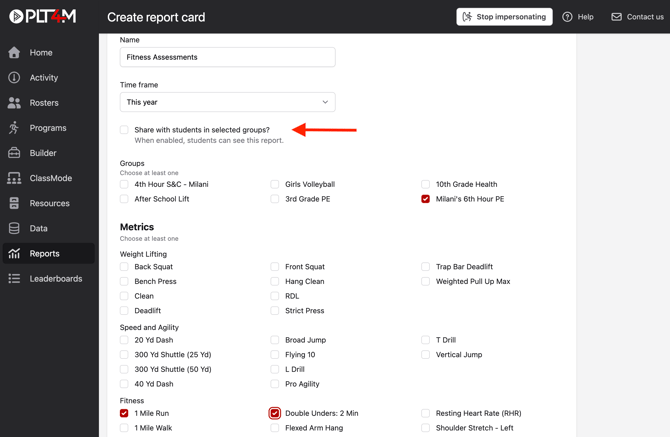
- Build your report
- Enter a name
- Select a time frame
- Choose desired groups
- Choose desired metrics
- Optional: Select the “Share with students in selected groups” checkbox to send this report to student accounts. Students will only see their own data.
- Click Save report
Your report will include a cover sheet with participation data and attendance leaders, as well as a summary of the groups progress and top performers in selected metrics.
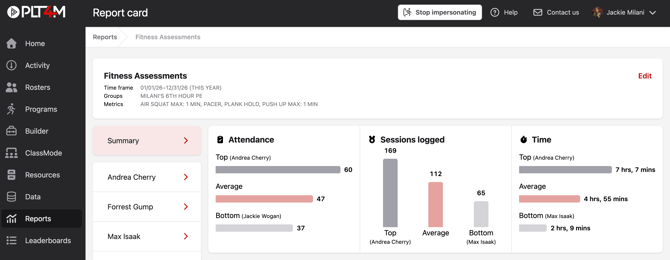
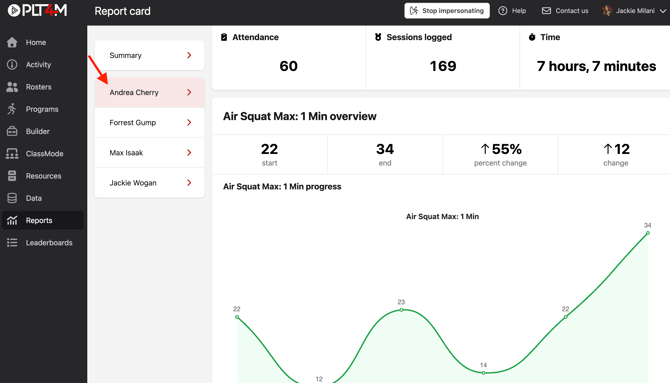
Beyond the cover sheet, you'll find a tab for each student. Click into a student to view their individual participation data as well as progress made in each metric.
📌 Pro-Tip: To print report cards, right click the page and choose the print option. Although, we recommend using the share report option to save paper!