
Students always have the option to click the "Forgot Password" link on the Sign in page to reset their own password. This will prompt them to enter their email, and upon submission, will send them a link to reset their password.
Staff users can also provide students with a direct link to reset their password, bypassing the email prompt. Here's how:
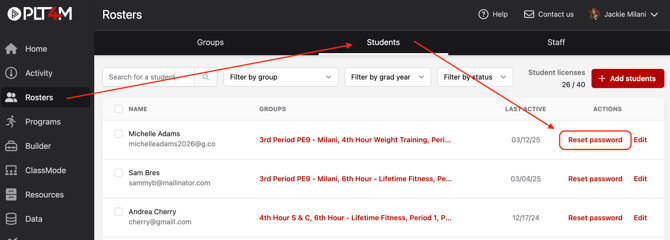
- Navigate to the Rosters page
- Select the Students tab in the top navigation bar
- Search for the student who needs to reset their password
- Click Reset password
- You'll be given two options:
- Choose the red Email student button to prompt the password reset email to send to the student
**Please note: you'll want to verify that the students email is correct. If there is a typo, choose edit to revise, and then select this option - Choose the copy option to copy the students' unique password reset link, so that you can paste and send it directly to the student.
**Please note: you should choose this option if students are experiencing issues receiving PLT4M emails due to the school network blocking it
- Choose the red Email student button to prompt the password reset email to send to the student
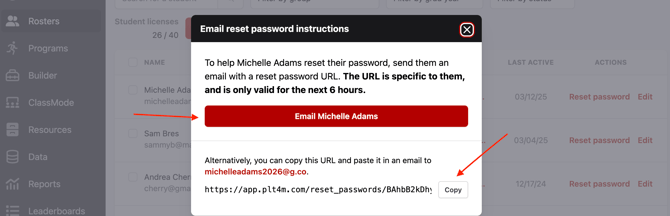
- Instruct your student to click the link and create a new password. The URL is unique to each student and valid for 6 hours.