1. Help Center
  2. Programs & Assignments

How to use ClassMode

ClassMode allows you facilitate a group workout while tracking student participation through PLT4M.

There are two ways to initiate a ClassMode session:

Option 1: via Program

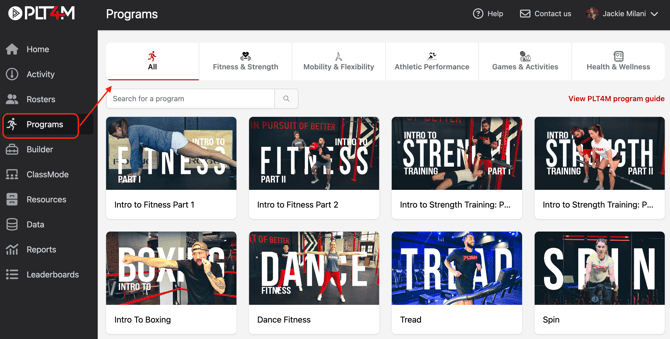
  • Navigate to the Programs tab
  • Select your desired program

Screenshot 2025-03-13 at 11.06.42 AM

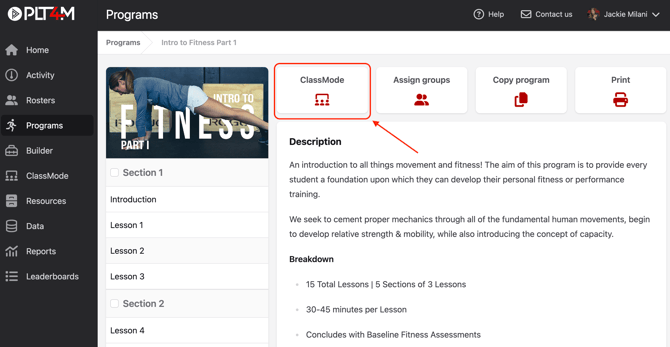
  • Select the ClassMode button

Screenshot 2025-03-13 at 2.39.22 PM

  • Select your desired day

Screenshot 2025-03-13 at 2.06.23 PM

  • At this point, you may choose to Add students if you want to track student activity for the session, or choose Presentation mode to proceed without tracking student activity

    Screenshot 2025-03-25 at 11.40.12 AM
  • If adding students:  Use the search bar or group filter to find and select the students you want to add to your ClassMode session
    • Use the (+) to add students, and the (—) to remove students
    • Use the group filter and select "add all students" to add an entire group to your ClassMode session
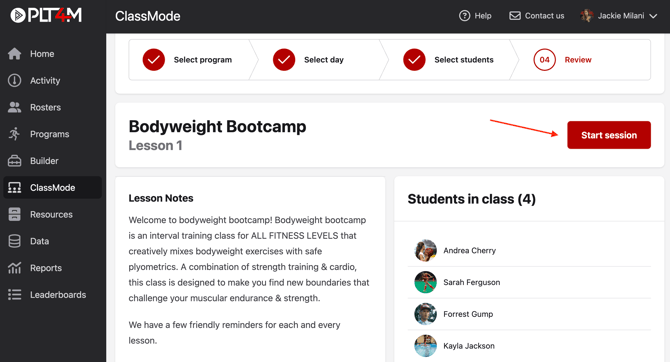
    • All students that appear in the right column under Students in class will receive credit for the session
  • Click Done

Screenshot 2025-03-13 at 2.11.37 PM

  • When you are ready to begin, click Start Session
Screenshot 2025-03-25 at 11.45.56 AM

  • This will start the ClassMode Session—ideally, you'll want to project the lesson/workout for your group to follow along
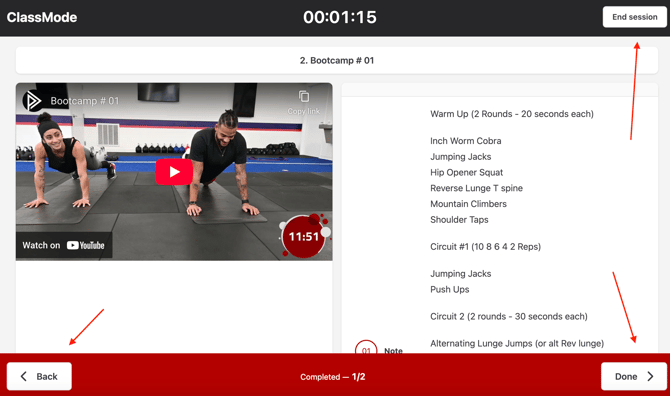
    • Click the Done buttons as you complete each section of the workout
    • Click Back if you need to go back to the previous screen
    • You may end the session anytime by clicking End Session, or, by clicking the final Done button

Screenshot 2025-03-25 at 11.47.47 AM


Option 2: via ClassMode tab

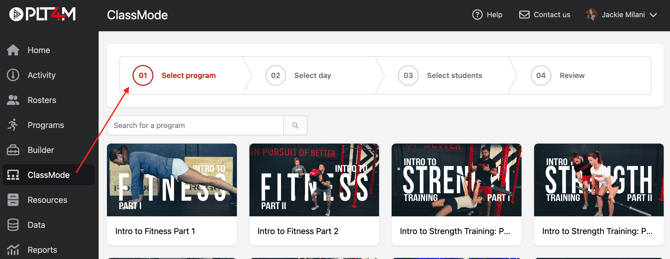
  • Navigate to the ClassMode tab
  • Select your desired program

Screenshot 2025-03-13 at 1.58.56 PM

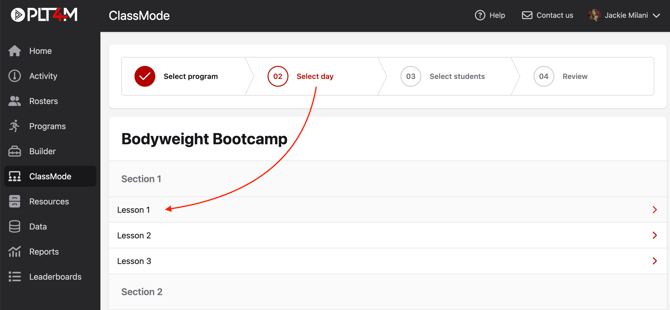
  • Select your desired day

Screenshot 2025-03-13 at 2.06.23 PM

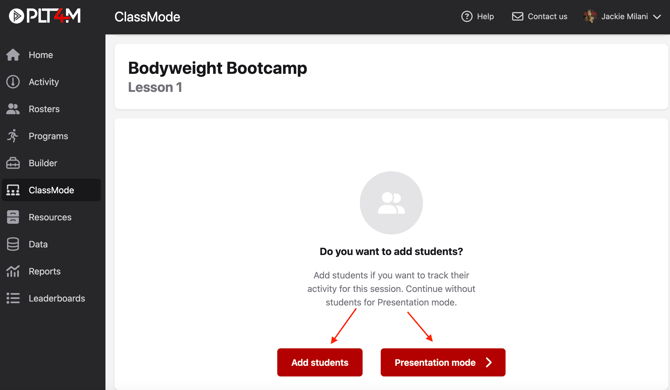
  • At this point, you may choose to Add students if you want to track student activity for the session, or choose Presentation mode to proceed without tracking student activity

    Screenshot 2025-03-25 at 11.40.12 AM
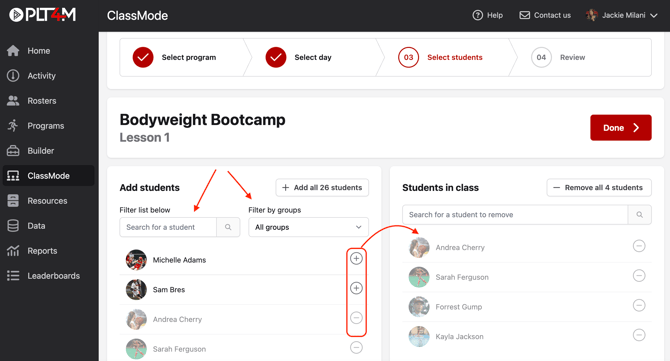
  • If adding students:  Use the search bar or group filter to find and select the students you want to add to your ClassMode session
    • Use the (+) to add students, and the (—) to remove students
    • Use the group filter and select "add all students" to add an entire group to your ClassMode session
    • All students that appear in the right column under Students in class will receive credit for the session
  • Click Done

Screenshot 2025-03-13 at 2.11.37 PM

  • When you are ready to begin, click Start Session
  • This will start the ClassMode Session—ideally, you'll want to project the lesson/workout for your group to follow along. Click the Done buttons as you complete each section of the workout. 

Watch the video tutorial to see how ClassMode works: