
The PLT4M and Schoology integration supports:
- Class Pairing — Connect Schoology courses with PLT4M groups and automatically enroll students in the corresponding PLT4M group.
- Deep Linking — Add links to PLT4M programs and content directly within Schoology courses.
Launch a course in PLT4M
Note: If you are using linked sections in Schoology, be sure to launch each section in PLT4M prior to linking them in Schoology.
- In Schoology, navigate to your desired course.
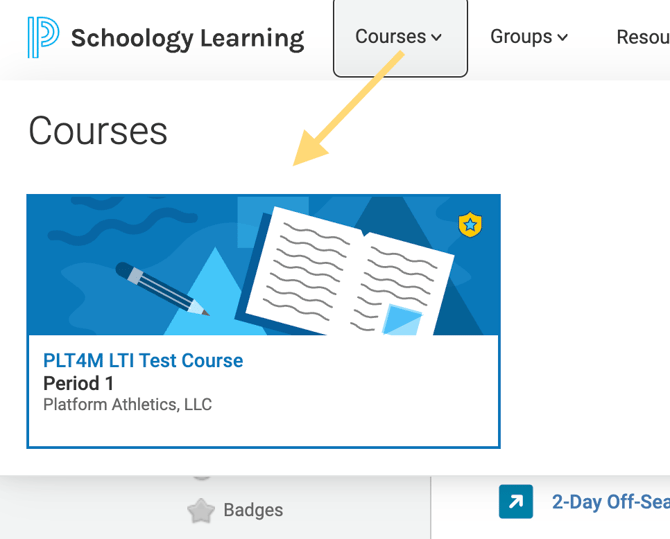
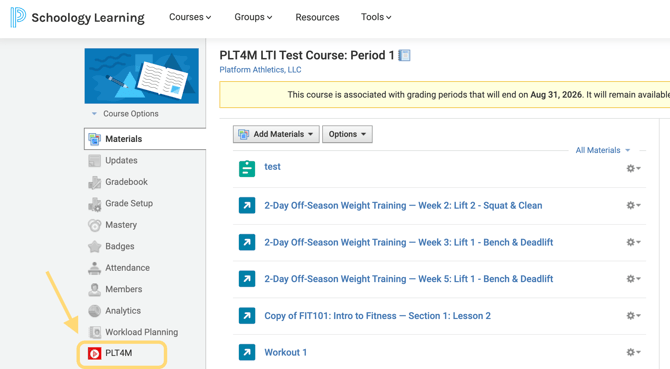
- Within the Course, select the PLT4M app. You'll be redirected to the PLT4M app (in a new window).
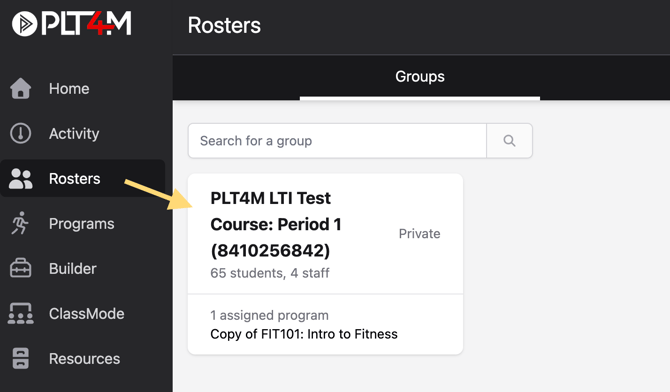
- In PLT4M, click into Rosters—you'll see that your Schoology course now exists in PLT4M. The students in your course will be automatically registered in PLT4M.
Assign a Program to your Group
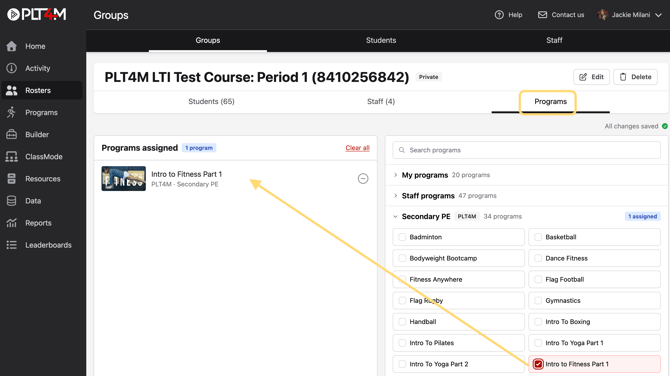
- In PLT4M, navigate to Rosters and select your newly created group. Within your group, click into the Programs column.
- Click to expand program options, then select the program(s) you'd like to assign.
How to Deep Link a PLT4M Workout or Lesson
Please note: in order to link a PLT4M assignment in Schoology, you must first assign a program to the group in PLT4M.
- In Schoology, navigate to your desired course.
- Choose Add Materials and select PLT4M.
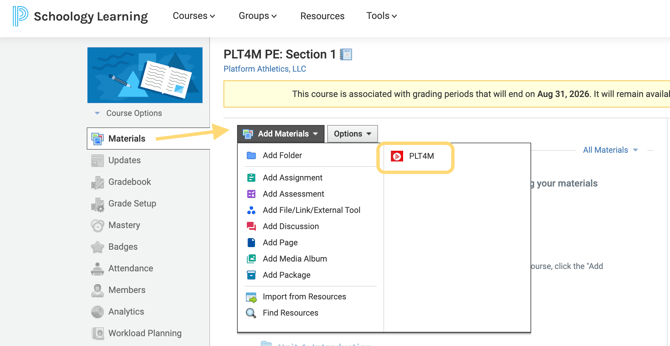
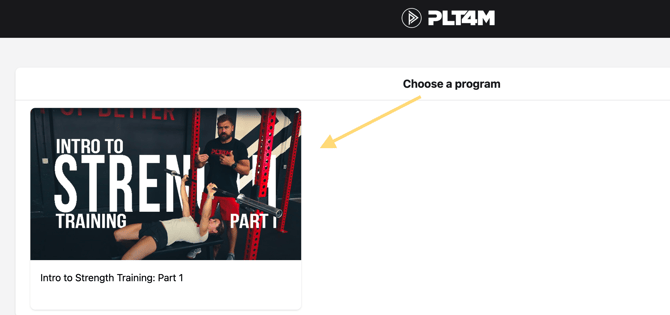
- You'll be redirected to PLT4M in a new window. Here, you'll see the groups' assigned programs. Click into a program, and locate the lesson or workout you'd like to add.
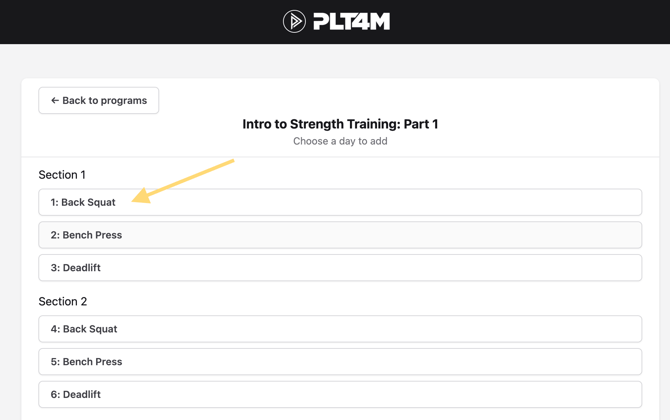
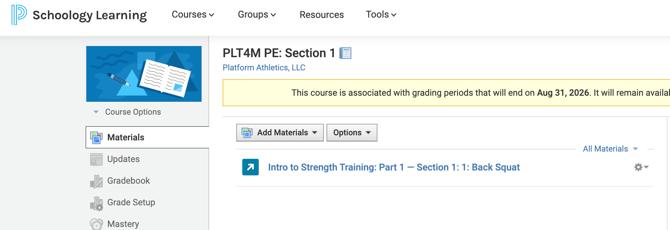
- Once selected, you'll be redirected back to Schoology where you'll see the PLT4M materials linked within your course.
How do my students access their PLT4M accounts?
Once students have been registered in PLT4M via a course launch through Schoology, teachers can instruct students to access PLT4M either through Schoology or by using one of the PLT4M SSO options found on the login page.