
Watch the video tutorial:
Follow the Steps Below:
Rack View can be accessed using a Join Code (does not require logging in) or via the Rack View tab in your account (requires logging in). Both options are outlined below.
Access with Join Code:
- Access the PLT4M sign in screen and select the Rack view tab
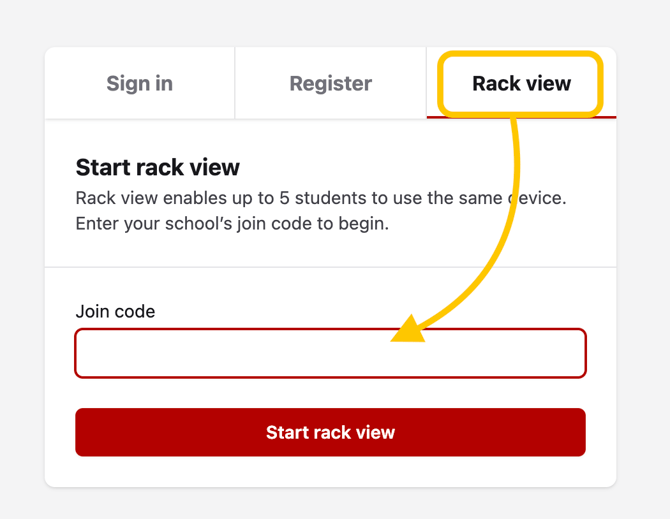
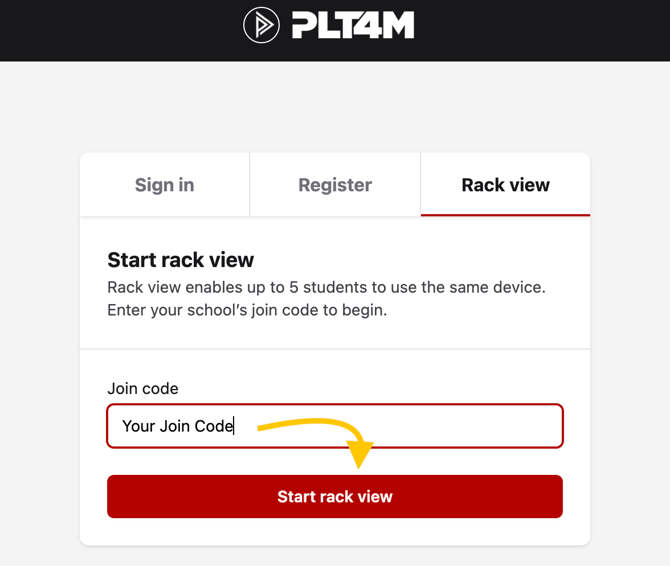
- Enter your schools Join code
- Click Start rack view
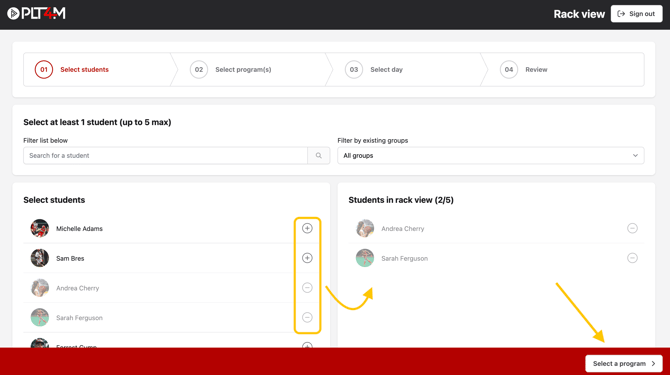
- Search and add (+) students to your rack view
- Click Select a program
- Choose a program (you may select multiple programs on the next screen)
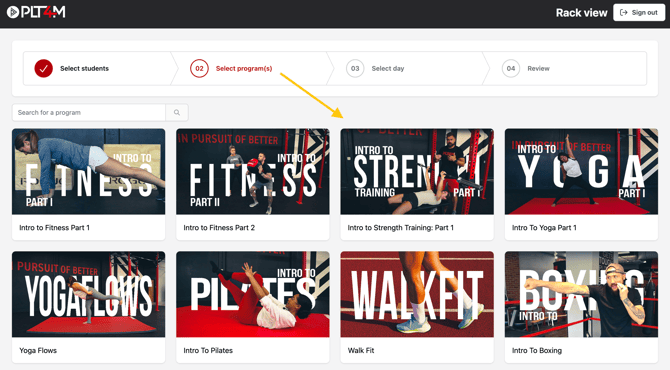
- Select a workout
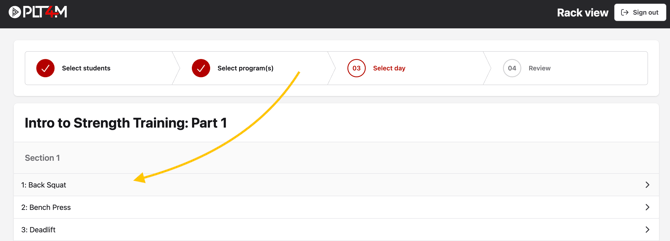
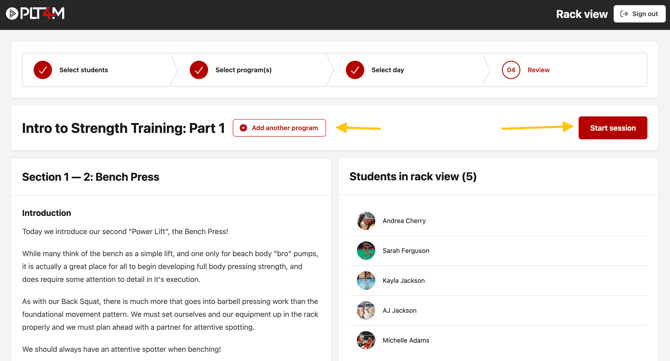
- Optional: Choose Add another program to add different workouts to the rack view
- If multiple workouts are selected, add students to their respective workouts
-
Click Start session to begin logging the workout
Access from your student account:
-
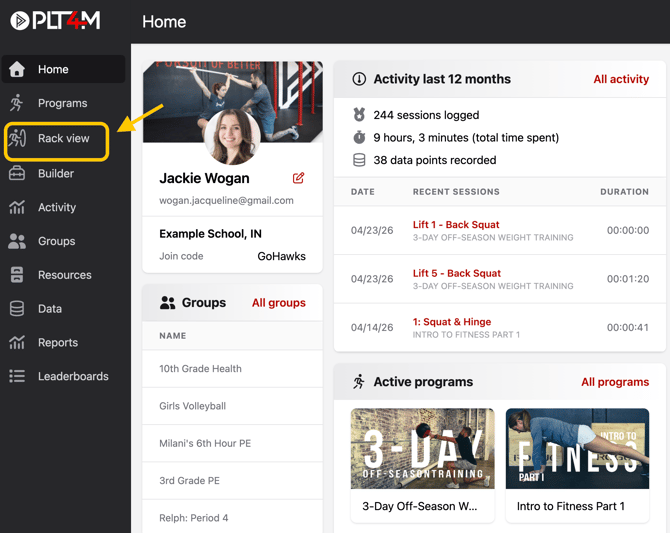
Log into your PLT4M account and select the Rack view tab
-
Follow steps 4-8 outlined above
On web:
On mobile: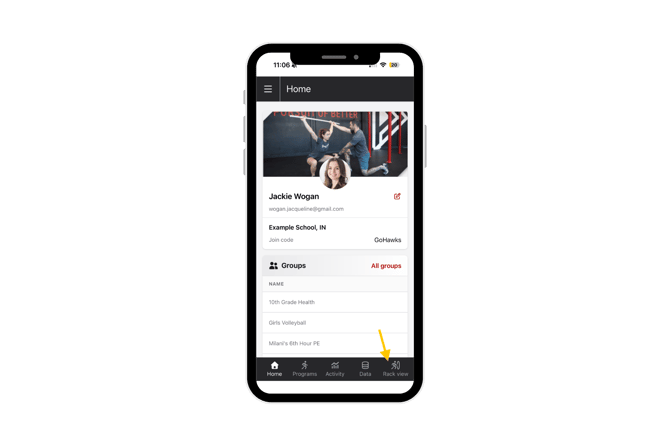
💡Please Note: The Rack View program selection page will display all programs assigned to all students in the Rack View, including student-built programs.