![Artboard 1@72x.png]](https://knowledge.plt4m.com/hs-fs/hubfs/Artboard%201@72x.png?height=40&name=Artboard%201@72x.png)
To Log Test Results as a Staff Member:
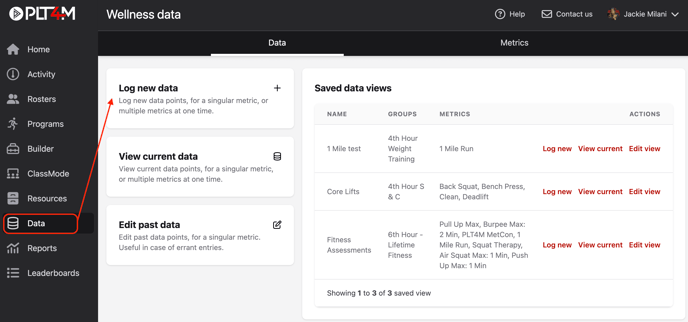
- Navigate to the Data tab
- Select the Log new data action
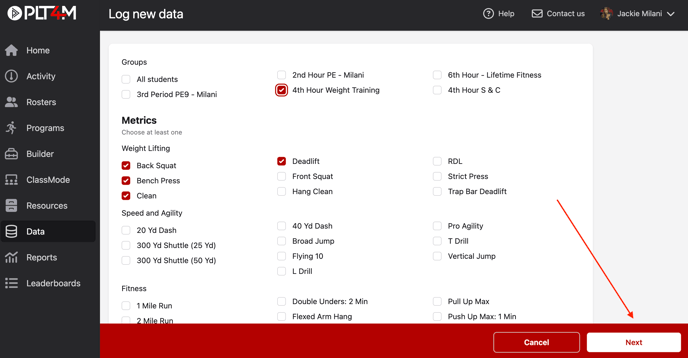
- Select the Group(s) and Metric(s) you'd like to enter results for
- Click Next
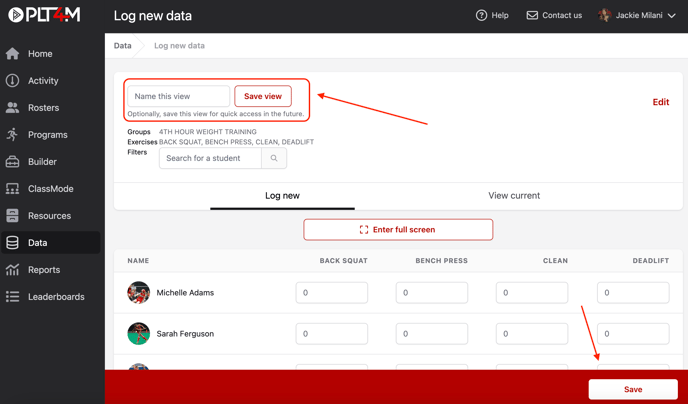
- Optional: for quick access in the future, enter a name for the view and click Save View
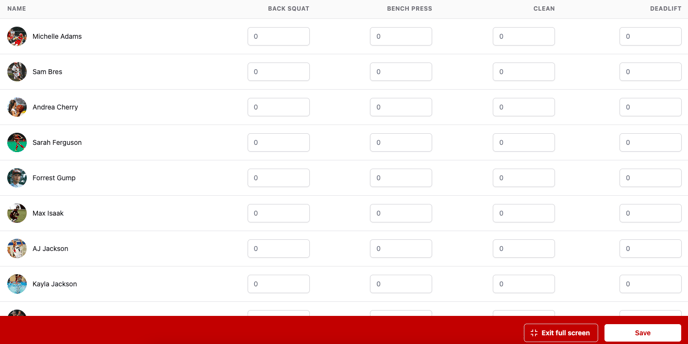
- Input results, and click Save
- Optional: If entering a large amount of data, select Enter full screen
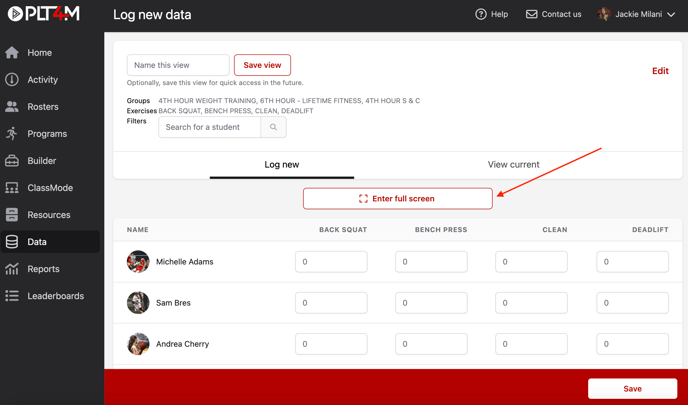
- In full screen mode, you'll be able to scroll up and down, and across, without losing sight of the student name or test name, allowing for easier bulk data entry
- Click Save
Watch a video tutorial:
To Log Test Results as a Student:
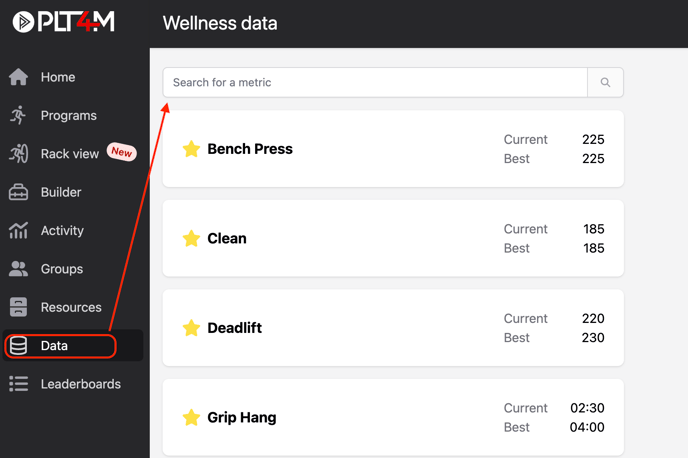
- Navigate to the Data tab
- Use the search bar to find and select the test you'd like to enter
- Enter the result and click Save New Result
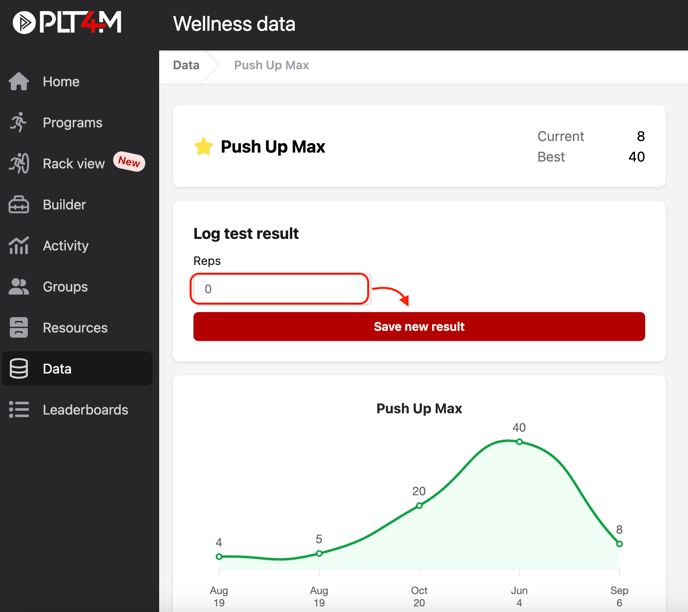
⭐ Favorite Assessments: Students can use the star icon to configure which tests will appear on their data dashboard. Students should favorite any tests they will be recording frequently.
Watch a video tutorial: