![Artboard 1@72x.png]](https://knowledge.plt4m.com/hs-fs/hubfs/Artboard%201@72x.png?height=40&name=Artboard%201@72x.png)
To Invite a Staff Member:
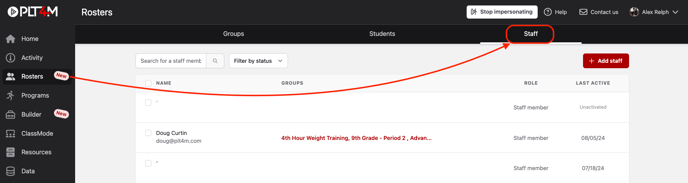
- Navigate to the Rosters tab on the sidebar
- Click into the Staff tab in the top navigation bar
- Select +Add Staff
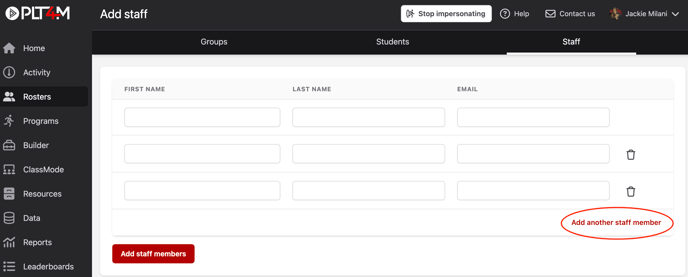
- Input staff members first name, last name, and email
- Click Add staff members to submit
Upon submitting, staff members will receive an email invitation prompting them to activate their PLT4M account.
Note: You may add multiple staff members at a time by clicking add another staff member
PLT4M Pro Tip: Use the status column to see who has activated and who has not. If using school emails, we recommend checking with your IT department to ensure plt4m.com is listed as a "Safe Site."
To Resend an Invite:
- Navigate to the Rosters tab on the sidebar
- Click into the Staff tab in the top navigation bar
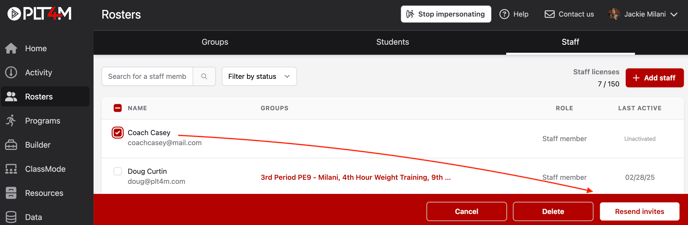
- Select the checkbox next to the staff member(s) you'd like to resend invites to
- Select Resend Invites
Watch a video tutorial: